New Computer In The House

Yesterday was my 46th birthday and with it came a trip to my local Apple store to buy a new iPad. While my initial reaction at the new iPad launch still stands, that this model is a specification upgrade and that it wouldn’t provide for me significant new functionality, I went ahead and bought it for two reasons.

First is that I expect that soon Apple will stop actively supporting the original iPad. You will recall that while the latest versions of iOS run on all previous versions of the iPhone, some of those older models do not support all of the functionality available in the latest release of the operating system. I think the same thing will happen to the original iPad, and I want to be able to run the latest and greatest software whenever Apple releases it. (Hint, Apple, I would love to Siri appear on the iPad.)

The second reason is that lately I have been encountering an increasing number of shut downs and otherwise slow performance on the original iPad, which I attribute to the new multitasking features of iOS running on a device with a slower processor and less program memory. In short, the specification upgrade of the new iPad made it worthwhile for me to buy the new model. If I had bought the iPad 2 I don’t think I would have felt the need to buy this model.

I decided on the 16 GB, WiFi + Verizon 4G model. After two years of owning the original iPad I had used only half of its 16 GB of storage, so I don’t think the 16 GB limit will be an issue for me, I don’t store any music or video on my iPad, just eBooks and apps. The in-store experience was as good as always at an Apple store, I already knew what model iPad I wanted and had picked out a smart cover before approaching a store employee to request my iPad and make the purchase. Unlike other stores that try to up-sell you, this person completed my order, asked if I wanted any assistance setting it up, and after completing the transaction I was on my way home.

After unboxing the iPad and completing the initial set up, I noticed something very wrong. At the top left where the mobile broadband indicator displays it showed AT&T rather than Verizon! I looked at the box and my receipt and found nothing that indicated that I had an AT&T or Verizon model. The Cellular Data, View Account setting also showed it to be an AT&T model. I tried using the little paper clip “accessory” to open the SIM card but was unsuccessful. My next step was to call Apple support, because I wasn’t sure whether I truly had the wrong model iPad or if something need to be done with the settings, but the support person was unable to determine what model iPad I had using the serial number, so I made another trip back to the Apple store.

Turns out that the boxes containing the AT&T versions of the iPad do not have any markings on them to indicate as such, the Verizon boxes do have a proper label on the back near the product serial number. The employee at the Apple store apologized for the mix up and quickly swapped the unit with the proper model. After making sure he completely reset my the previous model to wipe out any of my information (as part of the initial set up it connects to your Apple ID and downloads anything from iCloud) I headed back home for my second unboxing of the day. (Note to Apple, why not put a simple little sticker on the boxes for both AT&T and Verizon models to prevent this type of mix up.)

The reason why I wanted the Verizon model is that my original IPad is on AT&T and I think it’s cellular data connection is too slow. The other major bonus to the Verizon model is that it allows the iPad to be a personal hotspot for no additional cost, while the AT&T does not, and I like having another personal hotspot on another carrier. AT&T has the best signal coverage at my house, but I do get two and some times three bars on Verizon, and in my initial speed tests I saw it hit nearly 12 mbps download speeds, the best I ever see on the original iPad with AT&T is 3 mbps.

I am looking forward to spending more time using the new iPad and checking out new applications as developers start to take full use of all the capabilities that the hardware provides.
Posted in Experiences | Tagged , | Leave a comment

Power To Go

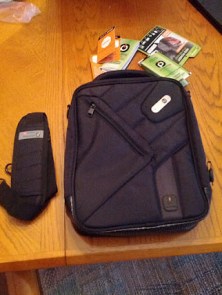
PowerbagOutside At the heart of the new, real personal computers are batteries. Ironically, while technology has changed by leaps and bounds the last two decades, battery technology is much the same. The Duracell and Energizer batteries you find in stores today are the same as the ones I bought in stores as a teenager, many, many years ago.
To compensate, developers incorporate all sorts of techniques for using less power, whether it’s turning off wireless radios, slowing down processors, and dimming screens. In my experience, Apple has done a particularly good job in this area, in fact I think the most significant aspect of the iPad is the fact that it easily makes it through the day on a single charge. Every time that I watch baseball for hours on end using my iPad, I am amazed at how long the battery lasts with the screen on and the WiFi radio working for hours.

Still, despite the improvements that have been made, if you carry around your computers throughout the day at some point you will become concerned about whether there is enough charge left in the device. To compensate we often buy extra chargers to have at the office and at home, and include a charger in the car so that we can top off batteries during some of these down times.

The problem becomes more complicated when carrying multiple devices, and a few months back I bought a Powerbag that has become an invaluable part of my computing toolkit. Powerbags have built-in batteries and power cords, and are available as backpacks, messenger bags, and brief cases. I own the Tablet Messenger bag, which has a stylish design and room to carry a 9″ tablet (iPad) or smaller, and two smartphones.

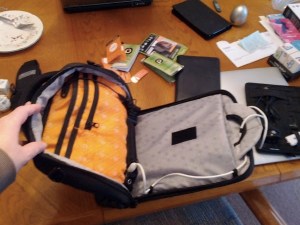
The Powerbag Tablet Messenger comes with a 6000 mAh battery that can charge a standard smartphone four times, and has Apple, micro-USB, and mini-USB cords, plus one standard USB port. PowerbagInside The Tablet Messenger is optimized for Apple fans as the Apple cord is located in the only outside pocket on the front of the bag, perfectly sized for an iPhone or Android smartphone. One can also charge an iPad at the same time by plugging in its charging cable in the USB port. An improvement that I would like to see with the bag’s design is interchangeable power tips that would allow me to change the Apple cord to a micro-USB cord, or vice versa.
I was disappointed to find that my Samsung Galaxy Nexus does not charge on the built-in micro-USB cord, apparently the Galaxy Nexus has a non-standard charging requirement. Fortunately, the Samsung Galaxy SII I have for work does charge on the micro-USB cord. To charge my Galaxy Nexus I carry a micro-USB cable that does work and connect it to the USB port, but that also causes me to constantly swap that cord with the USB charging cord of my HTC Flyer because unfortunately the Flyer has a non-standard charging port. (Boo, HTC!) I have never used the mini-USB cord as none of the computers I carry with me now have that port, so if Powerbag isn’t going to provide interchangeable tips on the cord, I recommend they replace the mini-USB cord with a second micro-USB.

The Tablet Messenger bag has a removable shoulder strap, a very well padded handle at the top, and is small enough to fit inside the main compartment of my rolling eBag Backpack that I use every day when I go to work. For each of my commutes I plug in my smartphone and HTC Flyer to top off the battery, and any time that I carry the Tablet Messenger to an appointment the devices inside are charging.

Every couple of days I charge the bag’s battery, which plugs into a dock that is attached to the bag. If you have devices connected inside the bag while charging the battery, the devices charge first before the battery re-charges, which means that while traveling you can simply plug in one cord to charge the multiple devices in the bag. On front side of the bag is a button that you press to check battery strength as well as turn on charging.

The Tablet Messenger Powerbag costs $139 direct, but can be found for a little cheaper on Amazon and other third party sites. As I said, this bag ships with a 6000 mAh battery, but I have recently bought a 9000 mAh battery for $59 to extend the length of time between recharges. I can carry the original 6000 mAh battery with me if I like to have even more recharging power if I am on extended trips.

Like many gadget fans, I am constantly on the lookout for stylish bags to carry my gadgets around. The Powerbag Tablet Messenger not only looks good, but it provides a much needed additional benefit of charging my computers. For me, the Tablet Messenger is perfect for my needs, but if you need to carry larger computers, you can check out Powerbag’s backpacks and messenger bags.

Posted in Experiences | Tagged , , | Leave a comment

Installing Android On A HP Touchpad

TouchpadAfterCM9I gained a new tablet computer this weekend, but I didn’t go to the Apple store, Best Buy, or order one from Amazon, instead I followed the instructions on webOS Nation to install CyanogenMod on my HP Touchpad. CyanogenMod is a customized Android ROM that is built to be installed on several different devices, mostly ones that have other versions of Android, but also available for the Touchpad. (Disclosure: I work for HP.)

Developers can create custom ROMS like CyanogenMod because Android is open source. In most cases the custom ROMs bundle software that is not provided by device manufacturers or the carriers that sell them. These custom ROMs may be the only way to get current versions of Android on older hardware that manufacturers have decided not to update. People often elect to install a custom ROM on an Android phone to remove software on their phones that carriers add but that they don’t want.

Touchpad owners have a good incentive to install Android on their phone because there are many more apps for Android than webOS. I actually think webOS is the best tablet operating system that I have ever used, and I hope that it gains success as open source, but sticking to webOS means being constrained by the number of apps available for the Touchpad.

I installed CyanogenMod Version 9, or CM9, which includes Android 4.X, the current version of Android also known as Ice Cream Sandwich. The process of installing CM9 on a Touchpad is easy, honestly the most time consuming part of the process is downloading the necessary files to your computer, but flashing a ROM on any device does come with risks of something going wrong that can render the device useless and its warranty voided.

Unlike some ROM installations that completely replace the software on the device, the CM9 installation for the Touchpad keeps webOS intact and provides a way to dual-boot between the two operating sytems, essentially providing the best of both worlds.

If you download all of the files that the instructions tell you to download, there will be two on your desktop computer that you won’t initially copy to the Touchpad, update-lcd_density_120-alpha2 and update-lcd_density_160-alpha2. You may want to copy these two files to your Touchpad in the same folder (/media/internal) as you install the google apps file. (Don’t install these files in the CMinstall folder.)

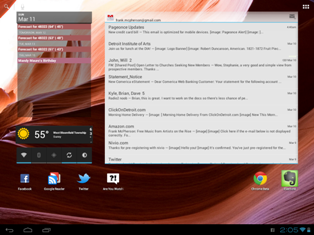
After you finish installing CM9, boot into Android, and set it up, you may notice that the screen resolution is not as high as you like. With the default resolution, you will not be able to get as many widgets and shortcuts on the home screen as you might like. To increase the resolution you apply update-lcd_density_120-alpha2 to CM9 by using “chose zip from sdcard” of clockworkmod. (The webOS Nation instructions explain more about how to do this.)

The screenshot above is taken with my Touchpad in the higher resolution. I do notice that with some apps like Gmail the font looks pixelated, while in Google Chrome fonts look perfectly fine. You will have to decide what is more important, more screen space or smoother fonts throughout. If after trying the higher resolution you decide that you want to switch back you can do that buy applying update-lcd_density_160-alpha2, using the same steps as you performed when apply the 120 density file.

Android runs very fluidly on the Touchpad, and so far I have been happy with it. One caveat is that while there are stable versions of CM9, it is still in development, and I have had a few instances where I have had to reboot the Touchpad. I’ve also noticed that the Touchpad microphone is not recognized so I can’t use Android’s voice search or voice actions as I can on my other Android devices. With an active development community behind it, I am confident that CyanogenMod will be updated to support the mic in the future.

Posted in Experiences, How | Tagged , | Leave a comment

Apple Announces The New iPad

Ironically, despite claiming that it “has its feet firmly planted in the post-PC future,” Apple ran a play from the classic PC-era playbook by announcing a new iPad with upgraded specifications. Nothing revolutionary was announced by Apple today as the new iPad looks the same and comes with the same operating system as the iPad 2.

The new iPad comes with an upgraded processor that will support faster graphics, a display with double the resolution, an upgraded rear camera, and support for LTE mobile broadband. Each of the specification upgrades are significant, and the improved display will make pictures and text appear as good as print. The new iPad doesn’t enable users to do anything new, it just enables users to do what they could do on previous models better. Doesn’t that sound like the personal computer upgrades of lore?

Apple is selling the new iPad at the same prices as they were selling the iPad 2, and they also announced they are reducing the price of the iPad 2 16 GB + WiFi to $399 from the previous $499. If you don’t own an iPad today, and want to buy one, I recommend buying the new iPad rather than the lower priced iPad 2, I have no doubt that the display of the new iPad is well worth the extra $100. In fact, if you can afford it, I recommend buying the new iPad 16 GB with 4G LTE from either AT&T or Verizon, particularly if you are a heavy Internet user.

All of the iPad mobile broadband plans are no-contract, pre-paid plans that you can turn on or off from one month to the next. I currently own an iPad 16 GB + 3G and only turn on the AT&T data plan when I go on a trip and don’t know that I will find WiFi. For me, the upgrade to LTE is the most significant part of today’s announcement, particularly if the iPad has the same battery life on LTE as it does with WiFi.

The new iPad is slightly heavier than the iPad 2 and that is most likely to include a larger battery. From what I read, it sounds like it is noticeably heavier but I suspect it’s near the same weight as the original iPad. A larger battery to maintain long battery life on LTE is worth a slight amount more weight.

If I owned an iPad 2 I don’t think I would be rushing out to buy the new iPad unless I really wanted to watch HD video or play higher resolution games. I don’t watch movies or play games on my iPad, so the display isn’t as compelling to me as I am sure it will be for many other people. As an original iPad owner I am on the fence about dumping it and getting the new iPad. Again, the new iPad runs the same operating system and so besides the specs, I can do the same things with my iPad that someone who buys the new iPad will be able to do.

Posted in News, Opinion | Tagged , , | Leave a comment

Metro Comes To The Desktop

This past week Microsoft released the Consumer Preview version of Windows 8, which is the version that Microsoft intends end users to try. The previous version of Windows 8 was only expected to be installed by developers. You can download and install Windows 8 Consumer Preview on any PC that is capable of running Windows 7.

Microsoft has influenced our understanding about personal computing more than any company. When most people think about a personal computer, they envision a Windows desktop. Consequently, the changes coming with Windows 8 will have a huge influence on what we think of personal computing in the future. Ironically, Windows 8 shows the influence that mobile computing is now having on desktop computing.

I’ve installed Windows 8 Consumer Preview in a virtual machine running on my Macbook Air using Parallels Version 7. Besides some erratic behavior with the mouse cursor, I have found Windows 8 to run very well on the Macbook and I think it is fast enough to be used as a primary system on this machine.

The Microsoft video below provides an overview of Windows 8. If you have never seen anything about Windows 8, and the very first time you see it is on a computer, you will likely find it to be shockingly different from previous versions of Windows. Microsoft has moved the familiar Windows desktop user interface to the background and put Metro in the forefront. Metro is the user interface that Microsoft developed for mobile devices.

Metro first appeared on the Zune HD media player and was then used for Windows Phone. Microsoft’s original mobile products, which I wrote several books about, closely aligned to the traditional Windows UI. With Metro Microsoft finally accepted that the original Windows UI was not optimal for smartphones, or for that matter any device with a touchscreen. Metro is a brand new UI built from the ground up to be used with touchscreens.

In Windows 8 the start button and corresponding start menu, which Microsoft first introduced with Windows 95, is replaced by a start screen. Tiles, which look like multicolored squares and rectangles, appear on the Windows 8 start screen. You tap or click on a tile to launch an app. Like with Windows Phone, many of the tiles display content, for example the People tile displays recently posted status updates.

Another significant difference in Metro is that left/right scrolling dominates throughout. Of the things carried over from the smartphones to the desktop, this left/right scrolling is probably going to be the must controversial and frustrating for long time desktop users. On a smartphone it makes sense to swipe left and right to move through screens and pages of content as that is simply faster to do, but on a desktop, particularly one without a touchscreen, it may not translate very well.

If you see someone using Windows 8 on a device with a touchscreen, you will see how easy it is to navigate through the environment. Special functions are also available when you swipe from the left and right edges of the screen, as well as swipe from the bottom up or the top down.

Of course, these special swiping gestures are not available on a device without a touchscreen. Instead, you activate these functions by moving the mouse cursor to the four corners of the screen. Moving the mouse to the bottom left of the screen and clicking returns you to the start screen. The upper left enables switching between apps, the upper right opens the “charms” bar, which is button bar of additional functions, including settings.

The Macbook Air has a large, multi-touch trackpad that helps in moving left and right, which you can do by simply sliding two fingers at a time left or right. I think that large multi-touch trackpads will become popular for Windows laptop computers. I also think that Windows 8 will put a premium on learning keyboard shortcuts for fast navigation. People who have strong opinions about how a desktop computer user interface should work will probably not like Metro on a desktop, while others will likely find Metro to be more friendly, and thanks to live tiles more personal, than previous versions of Windows.

Posted in Experiences | Tagged , | Leave a comment